Going back way back to the early 90s, I remember the wonderfully written installers for Windows 3.1 that
installed tools like Lotus 1-2-3, Freelance Graphics and others. This was the time
when a guy in a suit sold you computers. The development tools hidden behind these installers were a closely
guarded secret. However, sometime around the millennium, Winamp came around installer looked and behaved like something
out of a much more expensive piece of software - a proper wizard, a license page, a progress bar, an uninstaller
that actually showed up in Add/Remove Programs (in Windows 95 times).
It didn’t occur to me for years that the same company that made the MP3 player, Nullsoft, also gave away the tool that built
that installer, for free, to anyone. That tool is NSIS (the Nullsoft Scriptable Install System), and a shocking
amount of the Windows software you’ve installed in the last 25 years - Firefox for a long stretch, most game mod tools,
half of SourceForge was packaged with it.
NSIS never went away. It’s still actively maintained, still free, and still the pragmatic choice for anyone who
wants a real installer without paying for InstallShield or wrestling with WiX’s XML dialect. This post is a tour
through what it can actually do, backed by a small demo project that GitHub Actions builds, installs in GUI
mode (not silently), screenshots mid-install, and verifies - all on a disposable Windows runner.
Repo: github.com/treideme/nsis-demo
What NSIS Actually Is
At its core, NSIS is a script (.nsi) and a compiler (makensis.exe) that turns that script into a single
self-contained .exe. There’s no runtime dependency, no XML, no MSI database format to reverse-engineer when
something goes wrong - just an imperative scripting language with variables, functions, conditionals, and a
plugin system, compiled directly into the installer’s own resources. Contrast that with WiX, where you’re
authoring an XML description of an MSI table structure that Windows Installer then interprets at runtime. NSIS
is closer to writing a small program than describing a database.
Anatomy of the Demo Script
The demo installer (install.nsi) installs a stand-in “app” (notepad.exe, copied from the CI runner itself
at build time - I’m not shipping Microsoft’s binary in the repo) plus the Visual C++ Redistributable, and walks
through most of the feature set worth knowing about.
Version resource and branding
VIAddVersionKey /LANG=0 "ProductName" "${APPNAME}"
VIAddVersionKey /LANG=0 "CompanyName" "${COMPANYNAME}"
VIAddVersionKey /LANG=0 "LegalCopyright" "(C) ${COMPANYNAME}"
VIAddVersionKey /LANG=0 "FileVersion" "${VERSION}.0"
VIAddVersionKey /LANG=0 "ProductVersion" "${VERSION}.0"
VIProductVersion "${VERSION}.0"
This is what populates the Details tab in Windows Explorer’s file properties dialog for the compiled .exe:
easy to forget, and the first thing that makes an installer look homemade when it’s missing.
For the UI itself, Modern UI 2 (MUI2.nsh)
provides the whole page-flow macro set. I skipped the flat default background in favour of something more fun:
!define MUI_HEADERIMAGE
BGGradient 0000FF 000000 FFFFFF
BGGradient paints a full-screen gradient behind the wizard (blue to black, white text), the way installers
looked before Windows XP normalized the flat white background. It’s one line, and it’s the single most visually
distinctive thing in the whole script.
A custom page with nsDialogs
MUI2 gives you Welcome, License, Components, Directory, InstFiles, and Finish pages out of the box. For anything
else, nsDialogs lets you build an arbitrary page from
Win32 controls. I used it to show release notes, read from a plain-text file at build time, before the user gets
to the components page:
Function ReleaseNotesPageCreate
  nsDialogs::Create 1018
  Pop $0

  ${NSD_CreateLabel} 0 0 100% 12u "What's new in ${APPNAME} ${VERSION}:"
  Pop $1

  nsDialogs::CreateControl EDIT "${DEFAULT_STYLES}|${ES_MULTILINE}|${ES_AUTOVSCROLL}|${ES_READONLY}|${WS_VSCROLL}" ${WS_EX_CLIENTEDGE} 0 15u 100% 190u ""
  Pop $ReleaseNotesText

  StrCpy $4 ""
  ClearErrors
  FileOpen $2 "${RELNOTES}" r
  IfErrors notes_missing
  notes_loop:
    FileRead $2 $3
    IfErrors notes_done
    StrCpy $4 "$4$3"
    Goto notes_loop
  notes_done:
    FileClose $2
    ${NSD_SetText} $ReleaseNotesText "$4"
    Goto notes_end
  notes_missing:
    ${NSD_SetText} $ReleaseNotesText "(No release notes found for this build.)"
  notes_end:

  nsDialogs::Show
FunctionEnd

Page custom ReleaseNotesPageCreate
${RELNOTES} is a compiler define passed on the command line (/DRELNOTES=stage\ReleaseNotes.txt), pointed at
whichever releasenotes/*.md file matches the
version being built. There’s no Markdown rendering happening; it’s read as plain text into a read-only edit
control. But that’s the whole trick: the release note a user reads during install is the same file that lives
in version control, picked automatically by version number.
Skipping work that’s already done
The Visual C++ Redistributable section checks the registry before doing anything:
Section "Visual C++ Redistributable (x64)" SecVCRedist
  ReadRegDWORD $0 HKLM "SOFTWARE\Microsoft\VisualStudio\14.0\VC\Runtimes\x64" "Installed"
  ${If} $0 == 1
    DetailPrint "VC++ Redistributable already installed, skipping."
  ${Else}
    DetailPrint "Installing VC++ Redistributable (this can take a minute)..."
    InitPluginsDir
    SetOutPath "$PLUGINSDIR"
    File "/oname=vc_redist.x64.exe" "${SRC}\vc_redist.x64.exe"
    ExecWait '"$PLUGINSDIR\vc_redist.x64.exe" /install /quiet /norestart' $0
    DetailPrint "VC++ Redistributable installer exit code: $0"
  ${EndIf}
SectionEnd
This is shown to the user as an optional, checked-by-default entry on the Components page
(!insertmacro MUI_PAGE_COMPONENTS), so it’s both a demonstration of ${If}/${Else} logic from LogicLib.nsh and of ExecWait chain-installing another installer and capturing its exit code. On the actual CI runner, the
redistributable is already present, so this branch skips, which is itself worth seeing actually happen.
Previous-install detection is intentionally the boring version. A well-behaved installer always installs to the
same path, so there’s no need for a filesystem-wide search plugin. Just check whether the entry point is
already there and clean it up first:
IfFileExists "$INSTDIR\${ENTRYPOINT}" 0 NoOldInstall
  DetailPrint "Previous installation found at $INSTDIR, removing..."
  ClearErrors
  RMDir /r "$INSTDIR"
  IfErrors 0 NoOldInstall
    DetailPrint "Could not fully remove the previous installation (in use?). Continuing anyway."
NoOldInstall:
And the uninstaller is a normal Section "Uninstall": it removes the files, the shortcuts, and the Software\Microsoft\Windows\CurrentVersion\Uninstall registry key that makes the app show up (and be
removable) in Add/Remove Programs in the first place. It’s easy to write an NSIS installer that never gets this
far; Add/Remove Programs integration is a few WriteRegStr calls, not something NSIS gives you automatically.
Running It for Real in GitHub Actions
The interesting part is proving the script actually works, in GUI mode, on a machine that isn’t mine. ci.yml runs on windows-latest and does the whole thing for real:
- Installs NSIS itself via
choco install nsis (the runner image doesn’t ship it). - Stages the payload: copies
notepad.exe from the runner’s own System32, downloads the real VC++
Redistributable from aka.ms, and copies the matching releasenotes/<version>.md. - Compiles the installer with
makensis. - Launches it without
/S (a real GUI install) and drives the wizard.
Driving the wizard without a human is the part with no NSIS-specific answer; it’s just PowerShell and Win32:
$proc = Start-Process -FilePath .\NsisDemoSetup.exe -PassThru

function Advance {
  for ($i = 0; $i -lt 20; $i++) {
    if ($proc.HasExited) { return }
    $proc.Refresh()
    if ($proc.MainWindowHandle -ne 0) {
      [Native.Win32]::SetForegroundWindow($proc.MainWindowHandle) | Out-Null
      Start-Sleep -Milliseconds 300
      [System.Windows.Forms.SendKeys]::SendWait('{ENTER}')
      return
    }
    Start-Sleep -Milliseconds 300
  }
}
Each NSIS wizard page keeps the same top-level window and just swaps its contents, and pressing Enter always
triggers whichever button is the current default (Next, Install, or Finish), including on the custom nsDialogs release-notes page, since its edit control isn’t marked ES_WANTRETURN. Four calls to Advance walk
through Welcome, the release notes page, Components, and Directory (which relabels its own button to “Install”).
The first version of this had a bug worth admitting to: the real install finishes in well under a second (the
payload is tiny and the runner already has the VC++ runtime), so by the time the screenshot step ran, the wizard
had already reached the Finish page. I added two deliberate Sleep calls around the file copy in install.nsi (CI-demo padding, not something a real installer needs) purely so there’s an actual window in which to capture
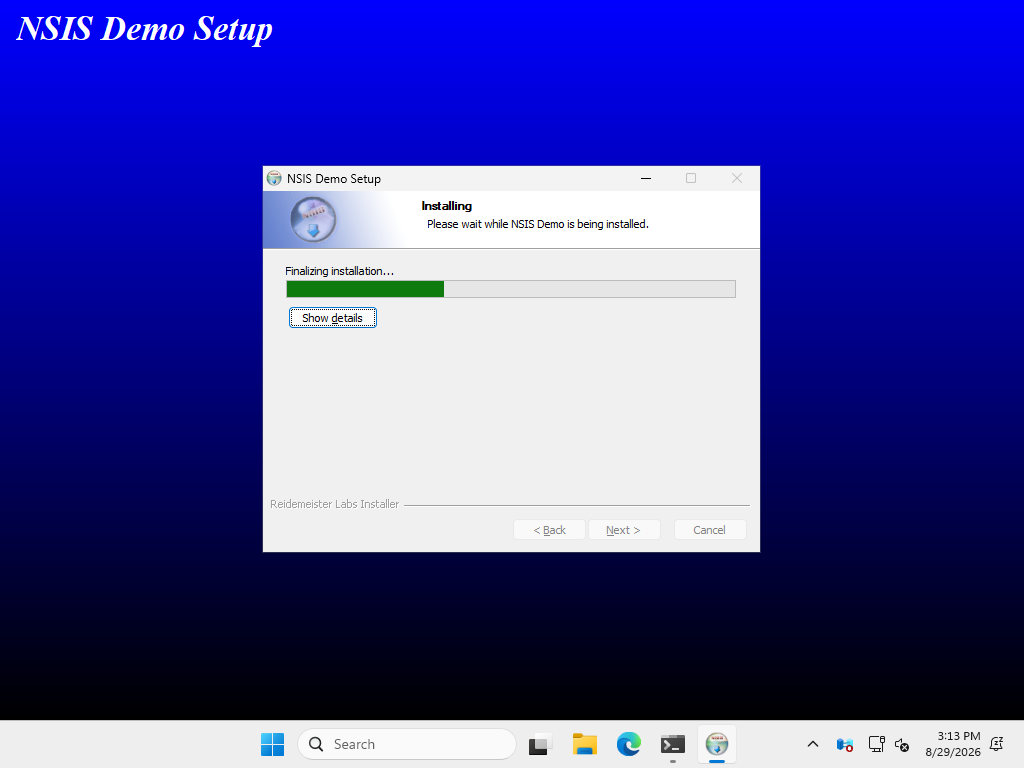
the InstFiles page. With that fixed, the runner grabs a real mid-install screenshot with System.Drawing.Graphics.CopyFromScreen:
That’s an actual screenshot pulled from a completed run, not a mockup. The run itself is here. After the wizard closes,
the workflow verifies the payload and the uninstaller exist and that the VC++ runtime registry key is set, zips
the installed directory tree, and uploads three run artifacts: the installer .exe, the screenshot, and the
installed files.
Cutting a Release
release.yml runs the same
build on a vX.Y.Z tag push, refuses to proceed if there’s no matching releasenotes/X.Y.Z.md (so a release
without release notes simply can’t happen), and attaches the installer and the notes to a GitHub Release:
gh release create "${{ github.ref_name }}" `
  "NsisDemoSetup-${{ steps.version.outputs.version }}.exe" `
  "releasenotes/${{ steps.version.outputs.version }}.md" `
  --title "NSIS Demo ${{ steps.version.outputs.version }}" `
  --notes-file "releasenotes/${{ steps.version.outputs.version }}.md"
One thing that cost me a debugging round trip: the default GITHUB_TOKEN GitHub Actions hands a workflow is
read-only unless the job explicitly opts in, so gh release create failed with an HTTP 403 until I added permissions: contents: write to the job. Worth remembering any time a workflow needs to write back to the repo
it’s running in.
The result is a real, tagged release: NSIS Demo v1.1.0, installer and release notes
attached, built entirely by the tag push.
Unattended Installs Across a Fleet
Everything above works because the CI runner behaves like a single person sitting at a keyboard: an actual
interactive session exists, and it’s the only thing happening on the machine. Push this exact installer out to
a few thousand endpoints through Intune, SCCM, or a login-script GPO instead, and several things stop working.
The script isn’t wrong; “unattended fleet install” and “GUI wizard automated by pressing Enter” are just two
different problems that happen to look similar in a demo.
Session 0 breaks the GUI-automation trick
Enterprise deployment tools install as the SYSTEM account with no interactive desktop attached (session 0
isolation, since Windows Vista). A GUI installer launched that way doesn’t hang waiting for a click that never
comes; there’s no desktop for it to paint on in the first place. The SetForegroundWindow/SendKeys approach
in ci.yml only works because GitHub Actions’ Windows runner logs a real user into an interactive session for
the job. That’s a fine trick for CI and a useless one for a fleet. The actual answer there is NSIS’s native /S silent switch, which skips every page - Welcome, the custom release-notes page, Components, Directory -
and just runs the Section code with whatever selection state the sections had by default.
The release notes page has no unattended equivalent
The whole point of the nsDialogs page was to put the release notes in front of a human during install. In /S mode nobody ever sees it. Gating on human acknowledgment and running silently on 3,000 machines overnight
are simply incompatible goals, and that’s not something to patch around - the practical answer for a fleet
build is to drop the requirement on the silent path and, if the content still matters, log it or ship it as a
separate document instead.
Exit codes and reboot state don’t propagate on their own
ExecWait on the VC++ Redistributable already captures its return code into $0, but the script currently
only DetailPrints it and moves on. If that nested install failed, this installer still exits 0. SCCM,
Intune’s Win32 app “return code” mapping, and any orchestrator that branches on %ERRORLEVEL% need a script
that actually calls NSIS’s SetErrorLevel (or Abort) when something downstream fails, and that recognizes
the MSI convention of exit code 3010 for “succeeded but needs a reboot” if it’s chain-installing anything
that can trigger one. Skip that, and the fleet quietly records a failed VC++ Redistributable install as a
success.
There’s no equivalent of an MSI ProductCode
Windows Installer keeps a database of installed products, queryable by GUID, which is what lets Intune, SCCM,
and Group Policy Software Installation detect “is this installed, and at what version” without any custom
logic. NSIS has nothing like it: the only detection surface is whatever gets written into the Uninstall registry key by hand (DisplayName, DisplayVersion, and so on, same as this demo does). That’s exactly what
Intune’s custom registry detection rules and SCCM’s registry-based detection methods are built to consume, but
keeping that key accurate is on the script author, and there’s no native upgrade/downgrade logic or
transactional rollback if an install fails halfway. MSI gets both from the platform; an NSIS script has to
hand-roll them.
DetailPrint only writes to the in-memory list shown on the InstFiles page; it’s gone the moment the installer
closes, unlike msiexec /l*v log.txt, which Windows Installer supports natively. NSIS can log to a file, but
only from a build of makensis itself compiled with logging enabled (NSIS_CONFIG_LOG), which the ordinary
NSIS download doesn’t ship with. Pulling centralized install logs back from a few thousand endpoints is routine
with MSI; doing the same here means either building a logging-enabled NSIS toolchain or writing manual FileOpen/FileWrite calls throughout the script.
What actually adapts this for a fleet
In rough order of how much it matters:
- Always invoke with
/S, and if overriding the install directory, /D=C:\Path has to be the last argument on the command line - NSIS parses it positionally, not as a normal named switch. - Parse fleet-controlled switches with
GetOptions/GetParameters from FileFunc.nsh (a /SKIPVCREDIST flag that calls ${UnselectSection} on SecVCRedist, for example) - there’s no MSI-style ADDLOCAL=/REMOVE= public-property mechanism to lean on. - Check every
ExecWait result and call SetErrorLevel deliberately, so the process exit code means
something to whatever is watching it. - Keep the Uninstall registry key accurate and stable across versions, since it’s the only thing an external
detection rule has to go on.
- Get a logging-enabled
makensis, or add manual file logging, before this ships anywhere without direct
screen access.
The one piece of modern tooling that already understands NSIS specifically is WinGet: its manifest schema has a
first-class Nullsoft installer type and passes /S for it automatically. Chocolatey packages take the more
manual route that’s realistic for most fleets today - a chocolateyInstall.ps1 that calls the NSIS .exe with /S and checks $LASTEXITCODE itself, which is item 3 above done by hand, once, in the packaging layer
instead of the installer script. Either way, NSIS’s job in a fleet context is to be a good citizen when
something else drives it silently, not to reinvent what Windows Installer already provides.
That maps to a simple rule for picking a tool: NSIS for something a person downloads and clicks through once,
MSI/WiX for something a fleet needs to detect, version, and roll back without a person anywhere near it.
Summary
NSIS’s reputation as “that installer from the 2000s” undersells it. Modern UI 2 gets you a competent wizard for
free, nsDialogs gets you out to arbitrary custom pages when that’s not enough, and the scripting language -
however dated it looks next to a modern build tool - is expressive enough to conditionally skip work, chain-install
another installer, and clean up after itself on uninstall. None of that requires anything beyond the stock NSIS
distribution; the one plugin I’d reached for initially (Locate, for scanning Program Files for a prior install)
turned out to be unnecessary once I remembered that a well-behaved installer always installs to the same place
anyway.
That confidence has a boundary, though: it’s specifically confidence in NSIS for a single machine with a human
in front of it. The moment the target is a fleet instead of a person, the calculus flips - not because NSIS got
worse, but because MSI was built for exactly that case and NSIS was never trying to be.
Further reading:
Published: 2026-02-07
Updated : 2026-02-07
Not a spam bot? Want to leave comments or provide editorial guidance? Please click any
of the social links below and make an effort to connect. I promise I read all messages and
will respond at my choosing.